




The player and manager pages are the ones you open the most on Sorare NBA Jet. Both have been rebuilt: tabs switch without reloading the page, everything works on mobile, and a lot of new information has landed. Here is what changed.
A new Sorare NBA player page
Open any player from the players list and you land on a single page with everything you need before you buy, sell or slot him in a lineup.
The header now gathers the essentials: current floor price for each rarity with its 7-day evolution, average score and minutes, global, offensive and defensive rank, next game, and whether you already own the player. From there you can set a price alert, add him to a watchlist or open the compare tool in one click. A FOMO or FUD badge appears when the market around the player is unusually hot or cold in the last hour.
The tabs:
- Scores: summary cards, score and minutes charts, the full game log and the next games. Filter by home or away, by opponent, or by "with missing players" to see how he scores when teammates sit out. Video actions and box scores are one click away.
- Performances: his average stats compared to his L10.
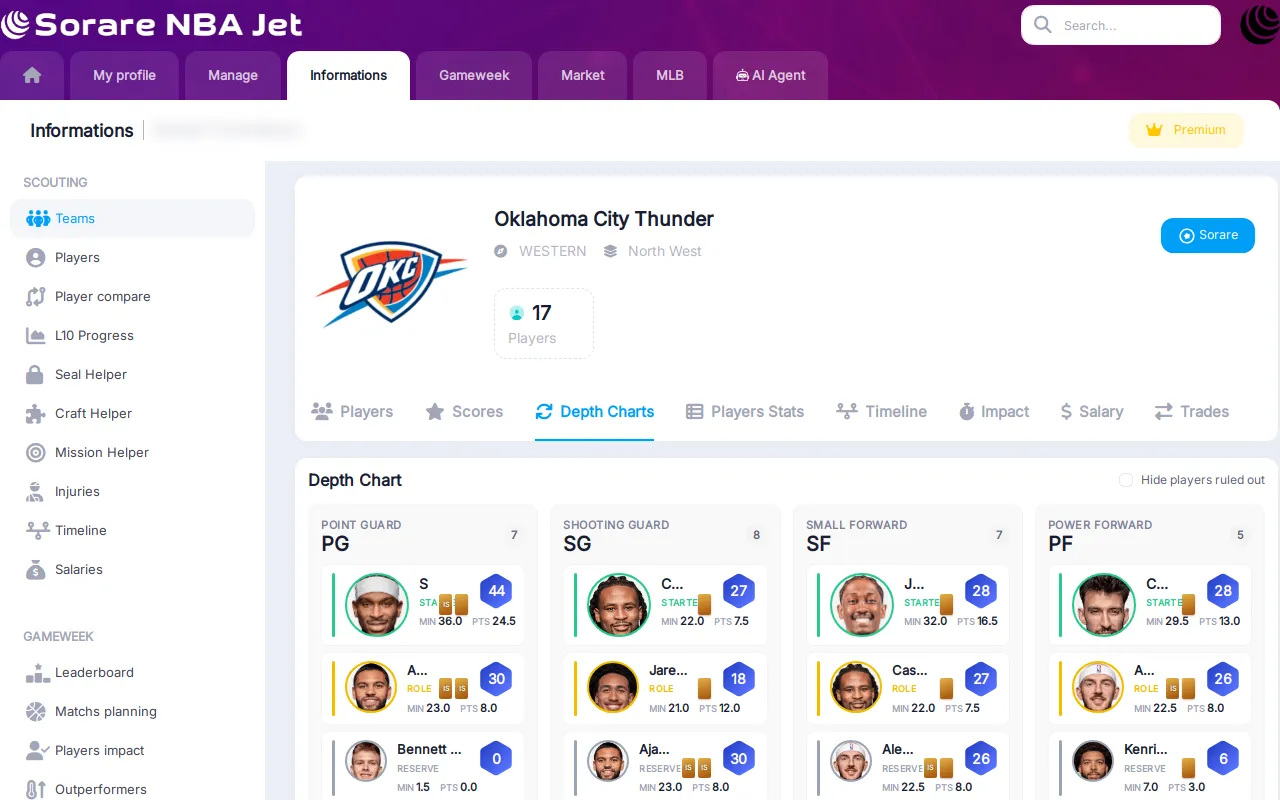
- Depth Charts: where he sits in his team's rotation (Premium).
- L10 history: how his L10 evolved over time, the number that drives your Stars cap (Premium).
- News and Timeline: injuries and projections in chronological order (Premium).
- Trades: every NBA transaction involving the player.
- Price history and Market: the price chart, the last sales and the cards currently on sale, by rarity.
NBA salaries and trades

Contract situations drive playing time. The new Salaries page shows every team's payroll against the salary cap, the luxury tax and the two aprons, plus dead money and cap space. A short guide explains why it matters for Sorare: players in a contract year often step up, and teams above the second apron look to move salary.
The player header shows the salary and how long the player is under contract, including player and team options. On each team page, two new tabs complete the picture: Salary, with the full roster contract table, and Trades, listing trades, signings and waives with the players sent and received.
Manager pages: roster, transactions, results
Manager pages follow the same tabbed layout: Roster (card grid or list view, with filters), Transactions, Collections, Results and Market. When you look at another manager, a Lineup Suggestion tab is available; on your own page, you get Stats and ROI.
The Transactions tab lets you filter by type, search by player or manager, and still export your history to a file.
ROI: is your Sorare trading actually profitable?
The new ROI tab answers the question every trader asks. It adds up what you spent buying cards, what you got back selling them, your cash prizes and the Sorare fees, and gives you a net result and a cash ROI. Reward cards you resold are counted separately, so you know how much your rewards really earned you.
With Premium, you go further:
- ROI with collection included: your result plus the current floor value of your roster.
- Your flips: completed buy-then-sell flips, win rate, average gain, best streak, average hold time, your money-maker players and your worst flips.
- Month by month: monthly and cumulative PnL charts, monetary rewards per month, best and worst month.
- The detail of every flip, sortable.
All of it can be filtered by period, operation type, rarity, Sorare season and card season.
My roster and my rewards
Your own roster page has been rebuilt too: total cards, average L10 and average age at a glance, distribution charts (cards by rarity, by L10, by age), and a view grouped by team or by rarity, compact cards or list. Exporting the roster to CSV, Excel or JSON is reserved for Premium members.
The rewards page now shows a season summary (cash, tier rewards, craft, daily rewards) and one card per gameweek with the rewards you won in each competition.
Supply & Demand replaces Top/Flop

The old Top/Flop market page is now Supply & Demand. For a period from the last 5 minutes to the last 7 days, and for one rarity or all, it puts side by side the most listed players (supply) and the most bought players (demand). A ×N badge shows how many listings there are per completed sale, so you can spot at a glance a player whose supply is piling up, or one whose cards are absorbed as soon as they are listed.
Want to follow the market in real time instead? See the Market Feed, and the Market Charts for the bigger picture.
How to use it
- Open the players list and click any player to reach the new page.
- Check the Salary line in the header and the Trades tab before buying a player whose situation might change.
- Open your own manager page from the top menu, then the ROI tab.
- Use Supply & Demand before listing a card, to see whether sellers are already ahead of buyers.

 Sign in via Sorare